Getting started with Sign Maker
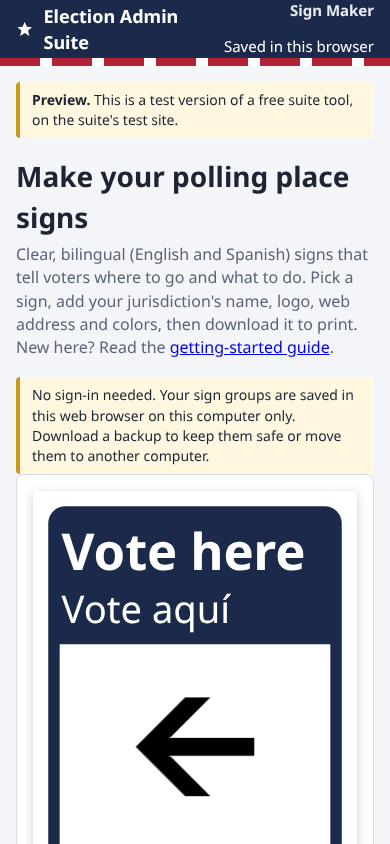
Sign Maker makes the signs for your polling places: Vote here, Check in, Mark your ballot, Exit and more. Every sign is in English and Spanish, with your jurisdiction's name, web address, logo and colors. You print them, or download them as a PDF, PowerPoint or Google Slides file.
A test version. Sign Maker is new and still a preview at signmaker.electionadminsuite.com. Everything in this guide works today. Keep a backup of your signs (section 10) while it's a preview.
1. Open Sign Maker
- In your web browser, go to signmaker.electionadminsuite.com. You don't need to sign in.
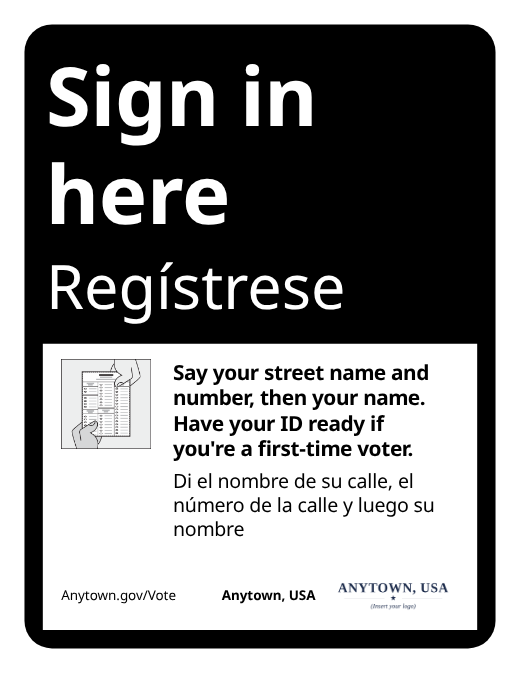
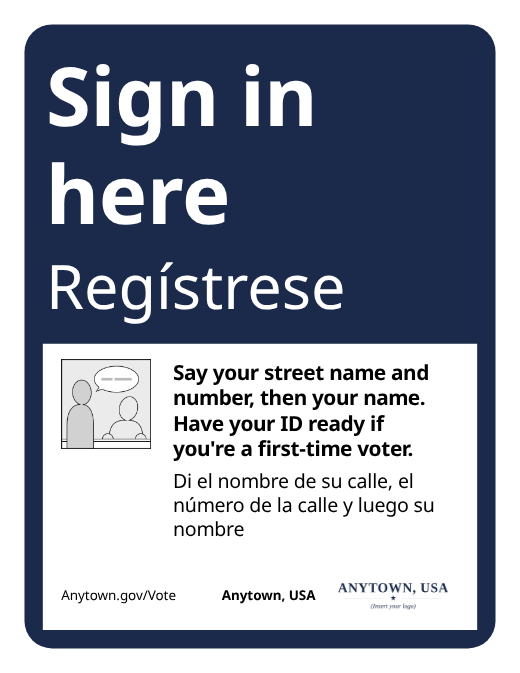
- The first time, Sign Maker makes a sign group called My first signs with one sign in it, Vote here. The picture on the right is the preview: it shows the sign exactly as it will print.
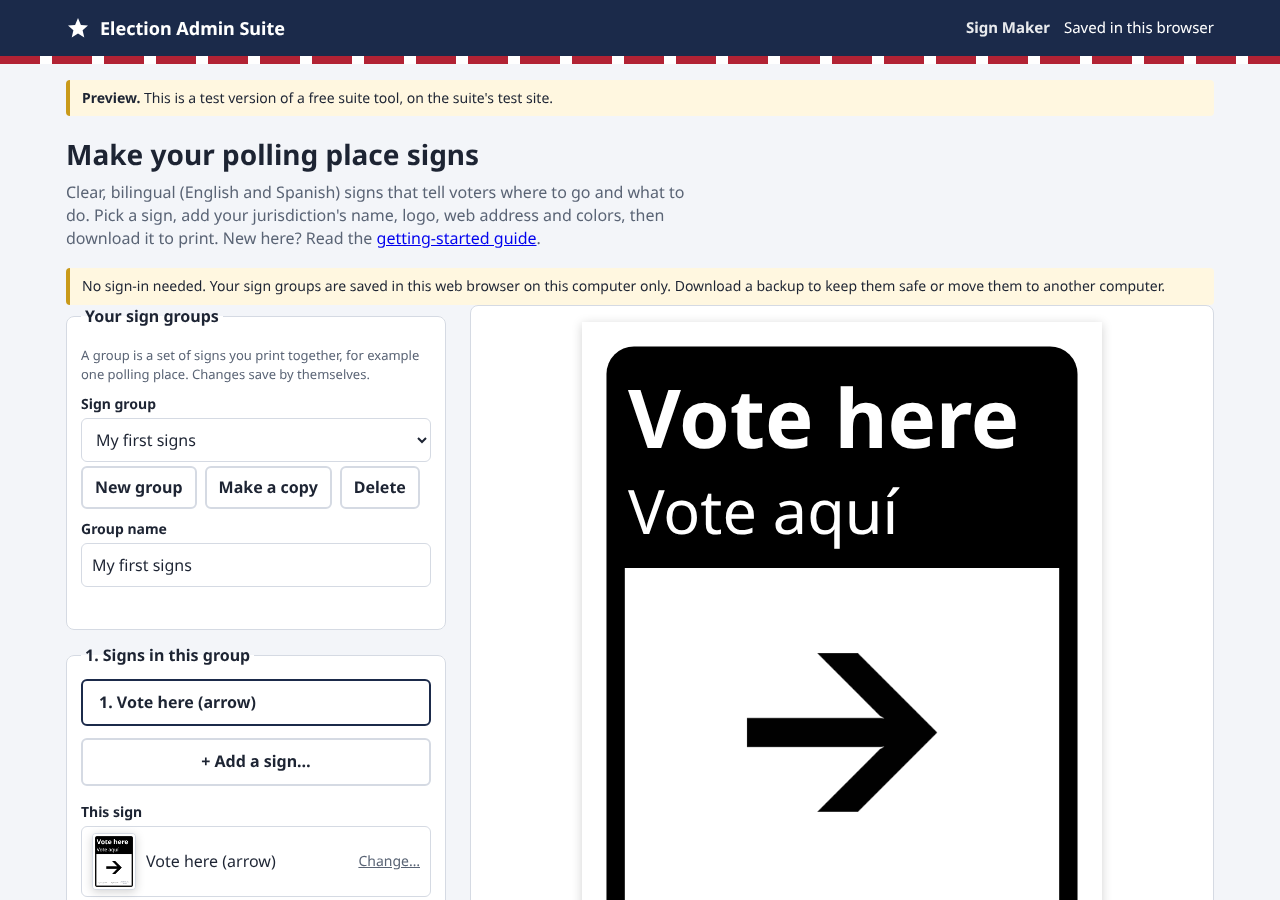
Where your signs are kept. Without signing in, your signs are saved in the web browser you use, on that computer only. Another computer or another browser starts empty. To move your signs or keep them safe, download a backup (section 10). A private or incognito window forgets them when you close it; the yellow note warns you if that's the case.
2. Sign groups
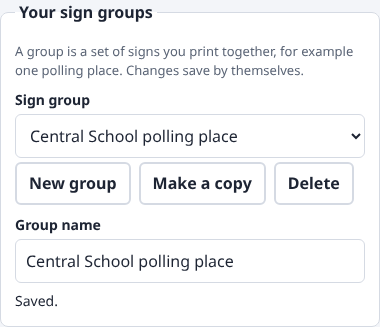
A sign group is a set of signs you print together, usually one polling place's signs. Each group keeps its own signs, words, size, colors, jurisdiction name and logo. Everything saves by itself a moment after you change it; the box says Saved.
- Group name: type a name you'll recognize, for example Central School polling place.
- New group starts another group.
- Make a copy copies the group you're on, with all its signs. Use it when two polling places need almost the same signs.
- Delete removes the group you're on, after asking. It can only come back from a backup.
- The Sign group list switches between your groups.
3. Add signs to a group
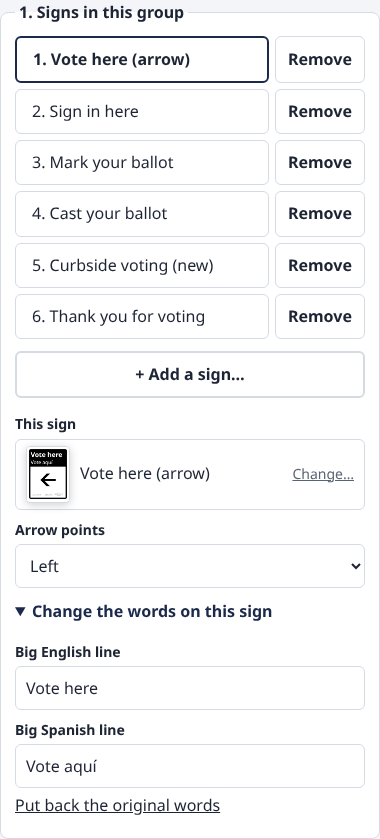
- Under 1. Signs in this group, press + Add a sign…. A window opens with a small picture of every sign. Click the one you want, or type in the search box to narrow them down (for example exit). Close or the Esc key leaves without adding one.
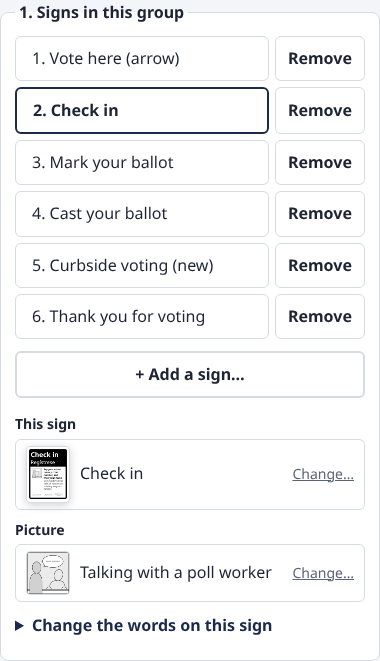
- Click a sign in the numbered list to work on it. The preview shows that sign.
- Remove takes a sign out of the group.
- This sign shows which kind of sign it is. Press it to pick another kind in the same window (this resets its words and picture).
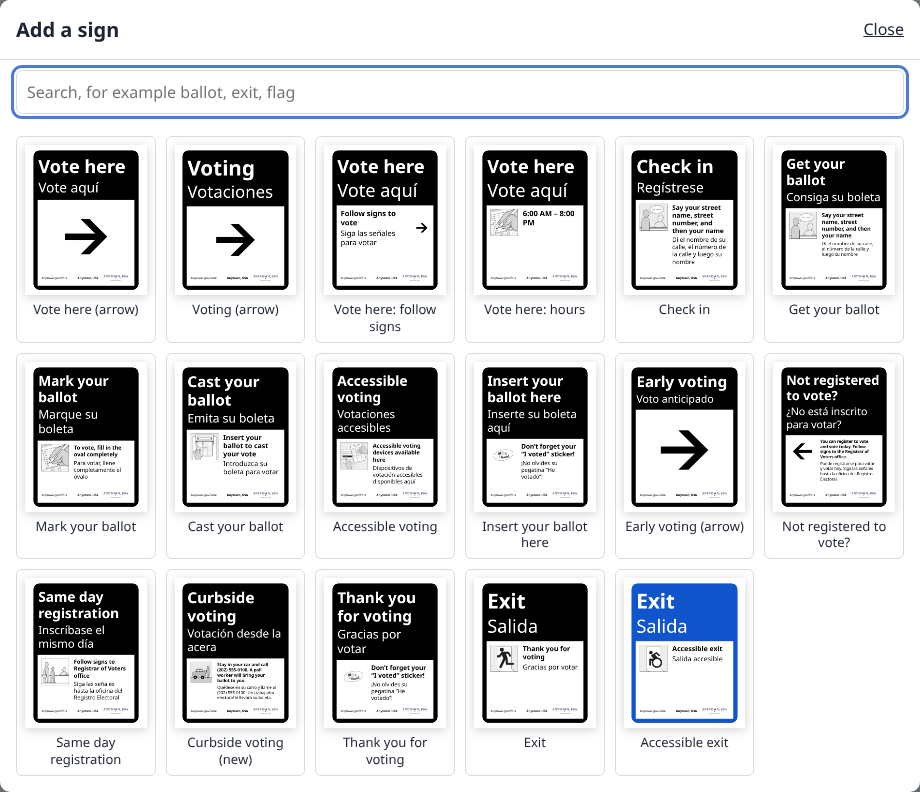
The signs you can add:
| Sign | What it says |
|---|---|
| Vote here, Voting, Early voting | The heading with a big arrow you can point any way. |
| Vote here: follow signs / Vote here: hours | "Follow signs to vote" with a small arrow, or your poll hours. |
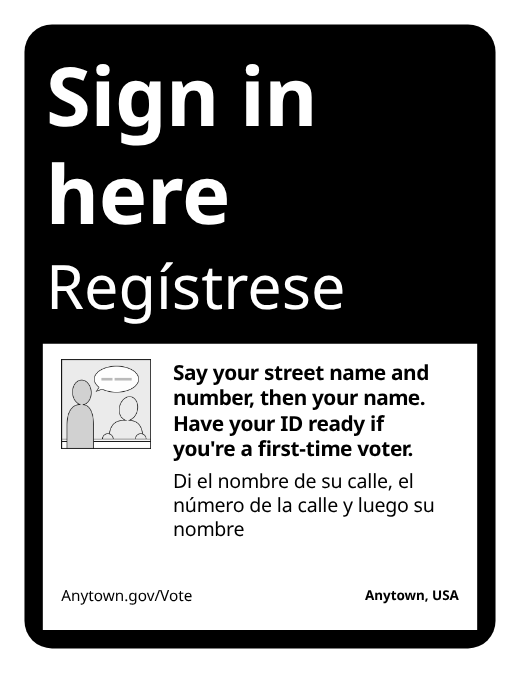
| Check in, Get your ballot | "Say your street name, street number, and then your name." |
| Mark your ballot, Cast your ballot, Insert your ballot here | How to fill in the oval, put the ballot in the scanner, and get an "I voted" sticker. |
| Accessible voting | Where the accessible voting devices are. |
| Not registered to vote?, Same day registration | Where to go to register and vote the same day. |
| Curbside voting | For voters waiting in their car (new: see the note in section 11). |
| Thank you for voting, Exit, Accessible exit | On the way out. Accessible exit prints in the accessible signs color. |
4. Change the words
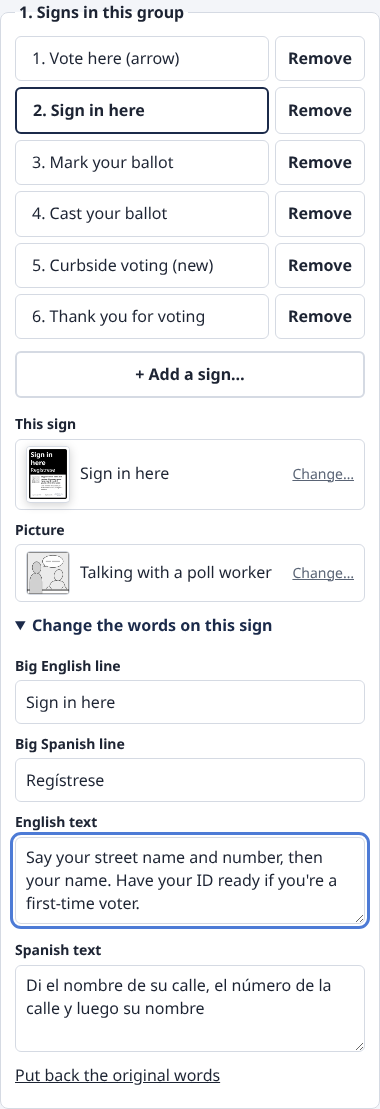
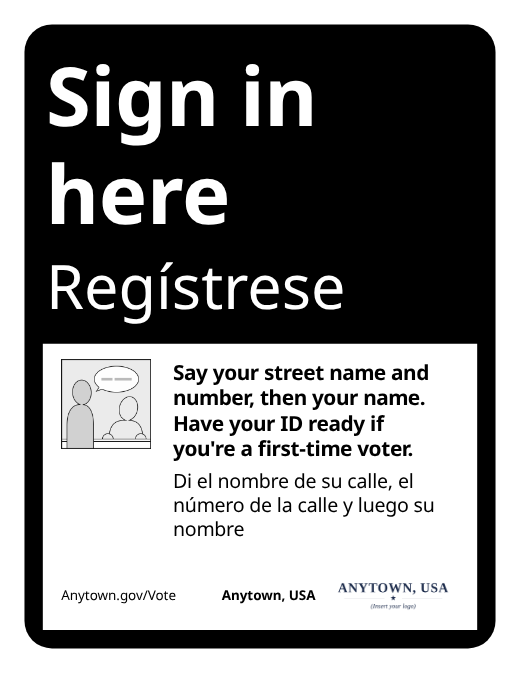
Every sign starts with the Center for Civic Design's tested wording in English and Spanish. To change it, open Change the words on this sign:
- Big English line and Big Spanish line are the heading at the top.
- English text and Spanish text sit next to the picture.
- When you change the big English line, the sign's name in the list changes too, so two Vote here signs pointing different ways are easy to tell apart.
- Put back the original words undoes your changes to that sign.
When you change the English, change the Spanish too. Sign Maker doesn't translate. If you aren't sure of the Spanish, ask someone fluent to check it before you print.
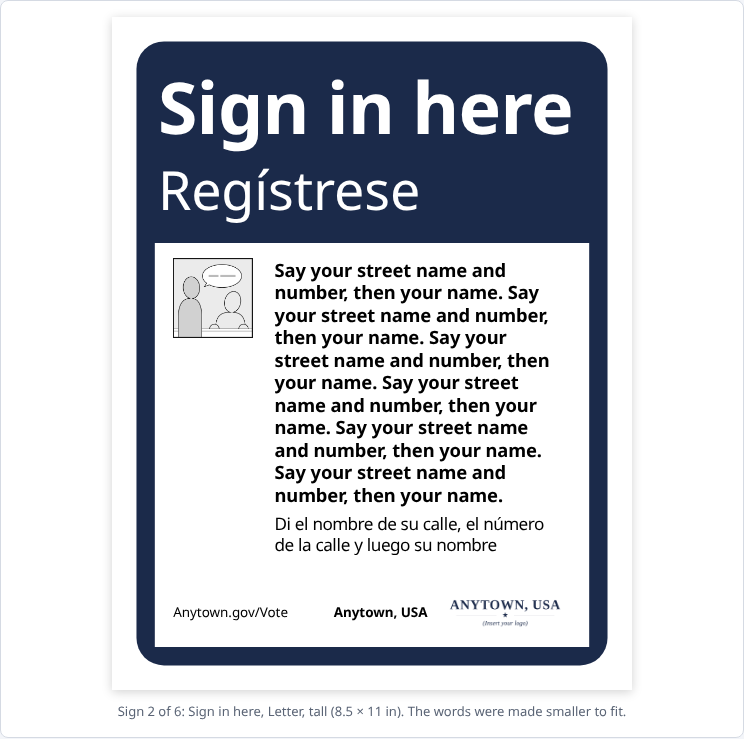
Long words shrink to fit. If you add more words than fit, Sign Maker makes the words next to the picture smaller first and keeps the heading big. The note under the preview says The words were made smaller to fit. If they'd become too small to read from a distance, it shrinks the heading too and warns you: shorten the words or pick a bigger size. If they can't fit at all, it says so; it never cuts words off.
5. Change the picture or the arrow
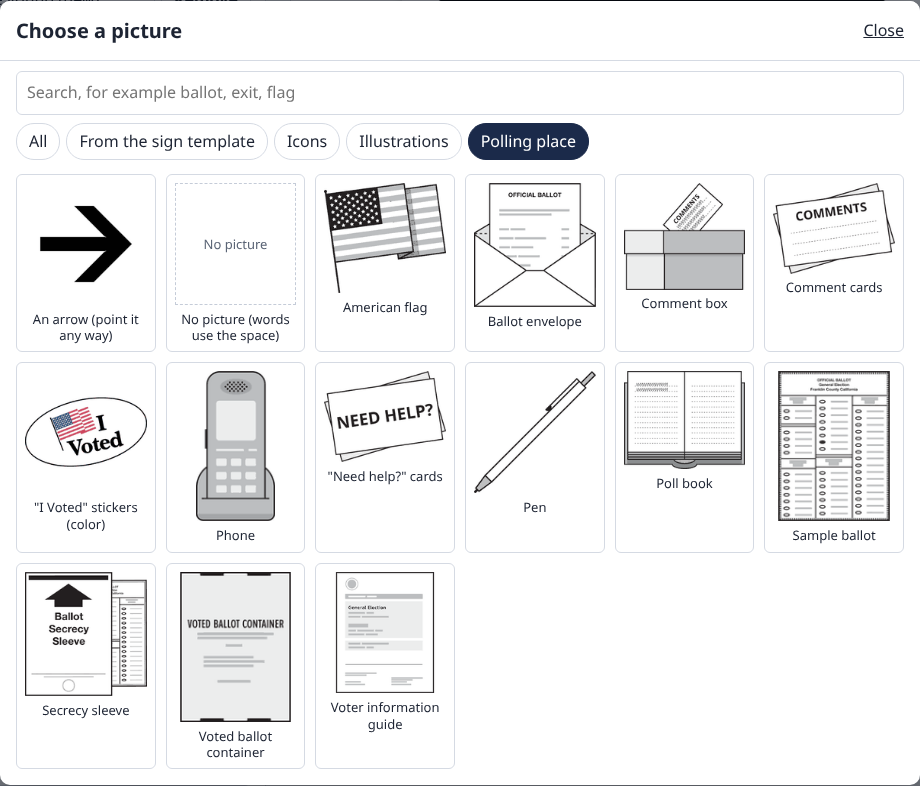
- Press Picture to open the picture window. It has the sign template's own pictures (talking with a poll worker, holding a ballot, the ballot scanner, a car at the curb, the exit doors and more) and about 60 more from the Civic Design library: icons such as a clock, a phone, a calendar or a photo ID, drawings of a polling place, and polling place things such as a flag, a pen or a secrecy sleeve.
- Type a word in the search box (ballot, flag, help) or press Icons, Illustrations or Polling place to see one kind. Click a picture to use it.
- You can also pick An arrow, or No picture, which gives the words the whole width.
- Arrow points appears on signs with an arrow. Point it right, left, up, down, or any of the four diagonals.
6. Your jurisdiction's name, web address and logo
These print at the bottom of every sign in the group. A new group starts with the sample Anytown, USA name, address and logo; replace them with yours.
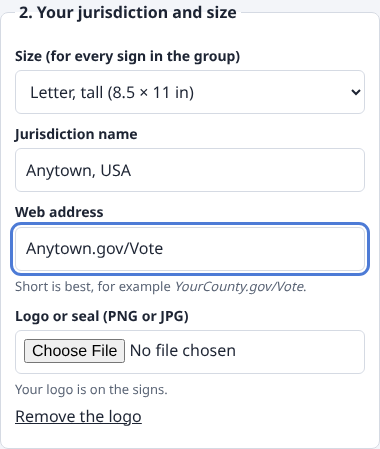
- Jurisdiction name: your town, city or county, for example Anytown, USA.
- Web address: short is best, for example YourCounty.gov/Vote.
- Logo or seal: choose a PNG or JPG picture. A white logo made for a dark background is redrawn in dark blue so it shows on the sign's white bottom strip. Remove the logo takes it off.
7. Size and colors
Size applies to every sign in the group. Bigger signs get bigger words, not empty space.
| Size | Good for |
|---|---|
| Letter, tall (8.5 × 11 in) or wide (11 × 8.5 in) | Tables and doors. Prints on any office printer. |
| 11 × 14 in, Tabloid (11 × 17 in) | Walls and easels. Many office printers take 11 × 17 paper. |
| 12 × 18, 18 × 24, 24 × 36 in | Outdoor and hallway signs, read from far away. Send the PDF to a print shop. |
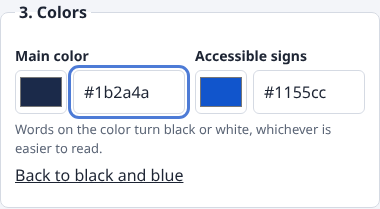
Colors. Main color is the frame and heading of every sign. Accessible signs is used for the Accessible exit sign. Click a color square to pick a color, or type a color code like #1b2a4a. The words on the color turn black or white by themselves, whichever is easier to read, so every color stays readable. Back to black and blue puts back the original colors.
8. Print or download
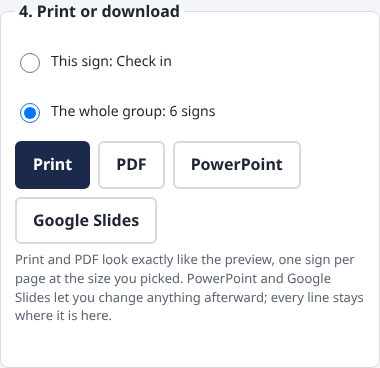
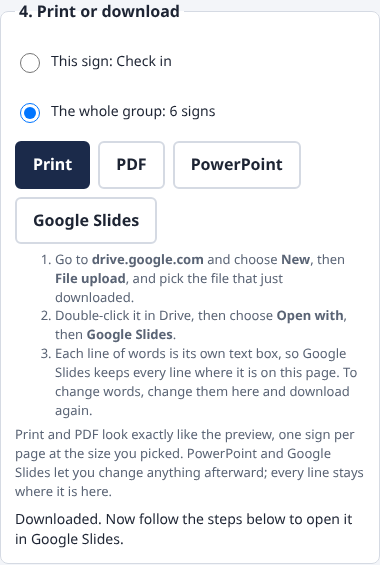
- Under 4. Print or download, choose This sign (the one in the preview) or The whole group.
- Press one of the four buttons:
- Print opens your printer window, one sign per page, at the size you picked. Set your printer to that paper size.
- PDF downloads a file that's ready to print or to send to a print shop.
- PowerPoint downloads a file you can change in PowerPoint.
- Google Slides: see section 9.
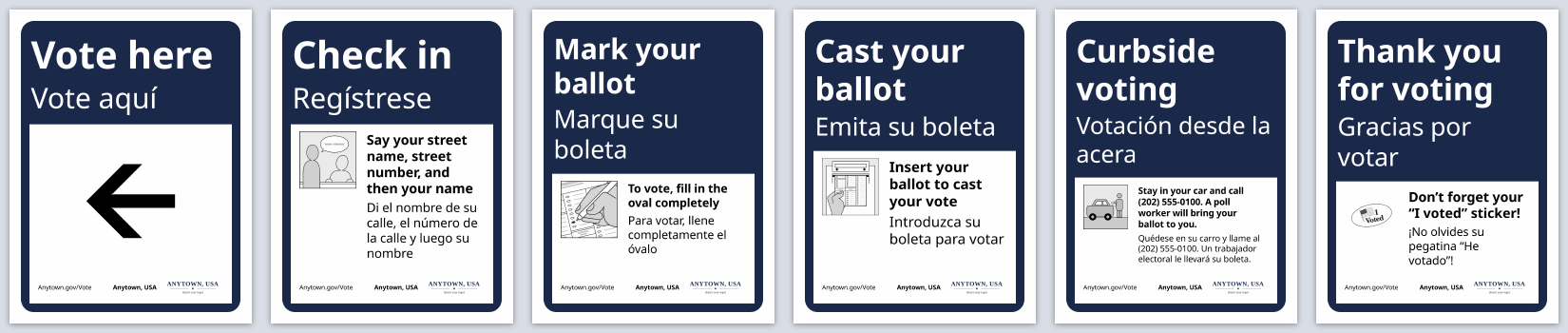
What you see is what prints. The printout and the PDF look exactly like the preview, line for line. In PowerPoint and Google Slides each line of words is its own text box, so every line stays where it was here too. To change words, it's easiest to change them in Sign Maker and download again.
9. Open your signs in Google Slides
- Choose This sign or The whole group, then press Google Slides. A file downloads, and the steps appear on the page.
- Go to drive.google.com and choose New, then File upload, and pick the file that just downloaded.
- Double-click it in Drive, then choose Open with, then Google Slides.
10. Back up and restore
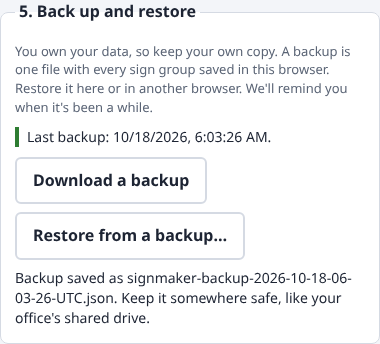
You own your data, so keep your own copy. Download a backup saves one file with every sign group in this browser, including your logos and changed words. Keep it somewhere safe, like your office's shared drive.
- Restore from a backup… loads a backup file. It replaces the sign groups in this browser, after asking. Use it to move your signs to another computer, or to get them back.
- A backup that's damaged or isn't a Sign Maker backup is refused, and nothing changes.
- The line above the buttons shows your last backup. It turns yellow after a day and red after three days, to remind you.
11. Where the designs come from
The signs are the Center for Civic Design's free Polling Place Signage Toolkit, used under the CC BY-NC 4.0 license. Their wording and pictures were tested with voters. Sign Maker lets you set the colors, sizes and your jurisdiction's details, and adds a Curbside voting sign drawn in the same style. The license allows no commercial use, so Sign Maker is free.
The extra pictures come from the Civic Icons and Images Library by the Center for Civic Design, Election Excellence and ElectionTools.org, used under the CC BY-SA 4.0 license on the condition that they are not sold. Sign Maker redraws the blue icons in black and white so they print well. Every PDF and PowerPoint file carries this credit too. The font is Noto Sans.
12. Getting help
- Questions or ideas for more signs: the Contact us buttons on your Election Admin Suite Tools page reach the suite team by email.
- Your account, if you have one: the account guide.