Getting started with Voting Coloring Pages
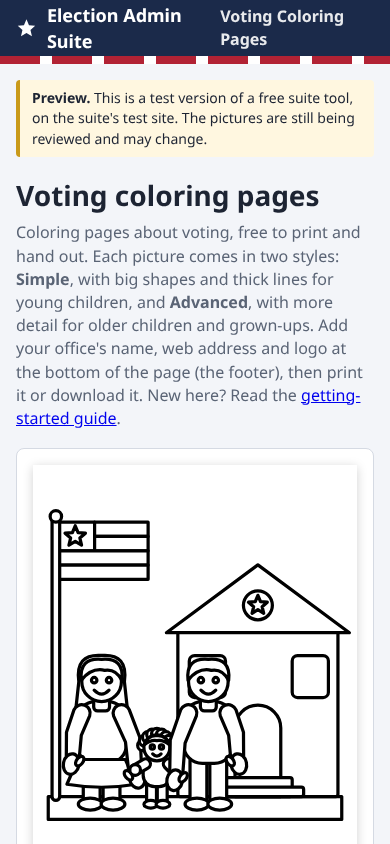
Voting Coloring Pages gives you coloring pages about voting to print and hand out: at the polling place, at library story time, at school visits or at a town fair. You put your office's name, web address and logo along the bottom of each page, so families know where to find you.
A test version. Voting Coloring Pages is new and still a preview at coloringpages.electionadminsuite.com. The pictures are still being reviewed and may change. Everything in this guide works today.
1. Open the tool
- In your web browser, go to coloringpages.electionadminsuite.com. You don't need to sign in.
- The first page is already showing, with a sample footer for Anytown, USA at the bottom. You'll replace it with your own in step 3.
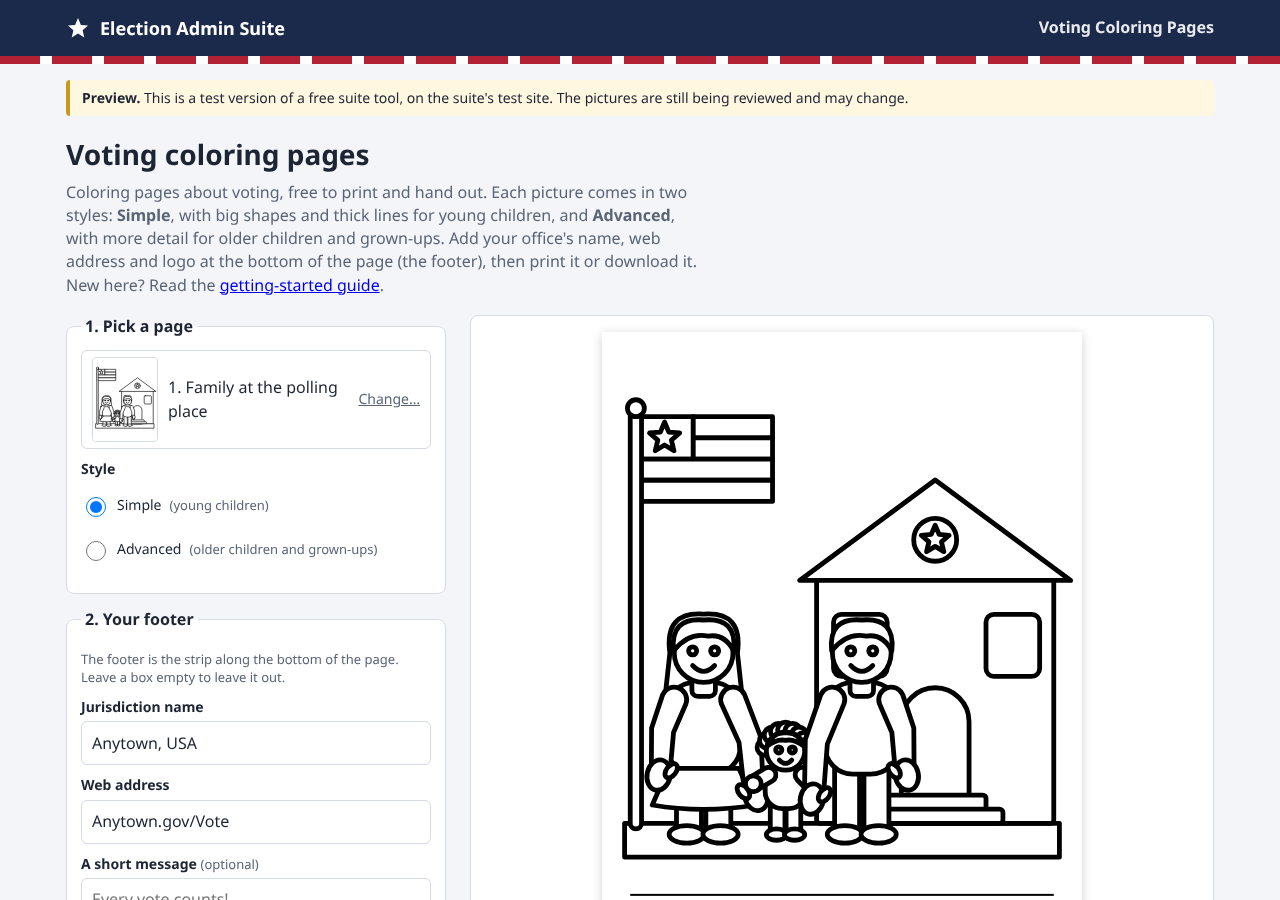
2. Pick a page and a style
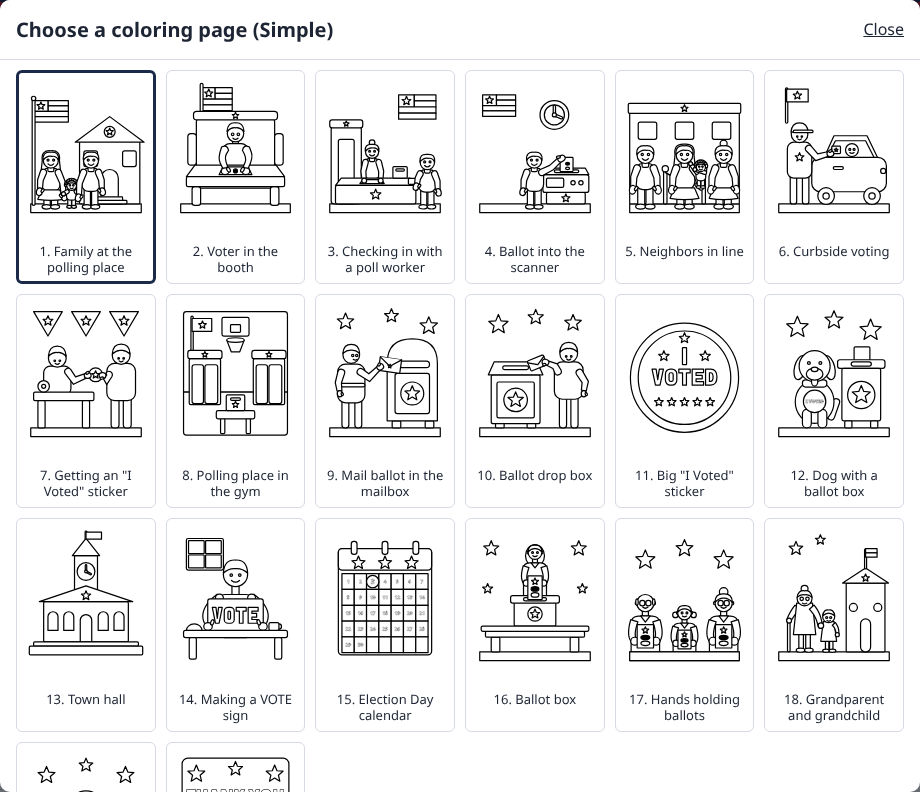
- Under 1. Pick a page, press Change…. Every page is shown small. Press the one you want. (Close or the Esc key leaves without changing.)
- Or step through them with ‹ Previous and Next › under the preview.
- Under Style, choose Simple or Advanced. Every page comes in both.
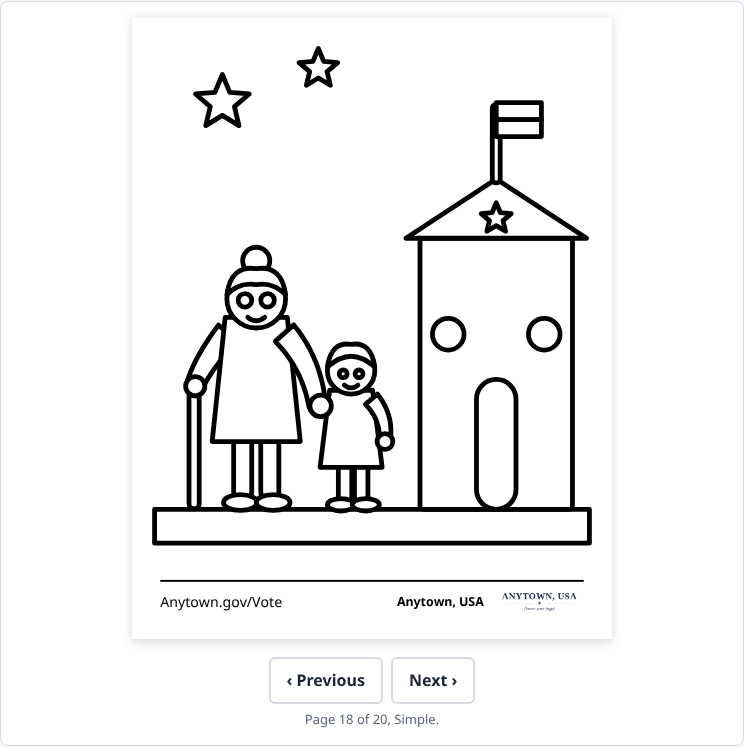
- Simple: big shapes and thick lines, for young children.
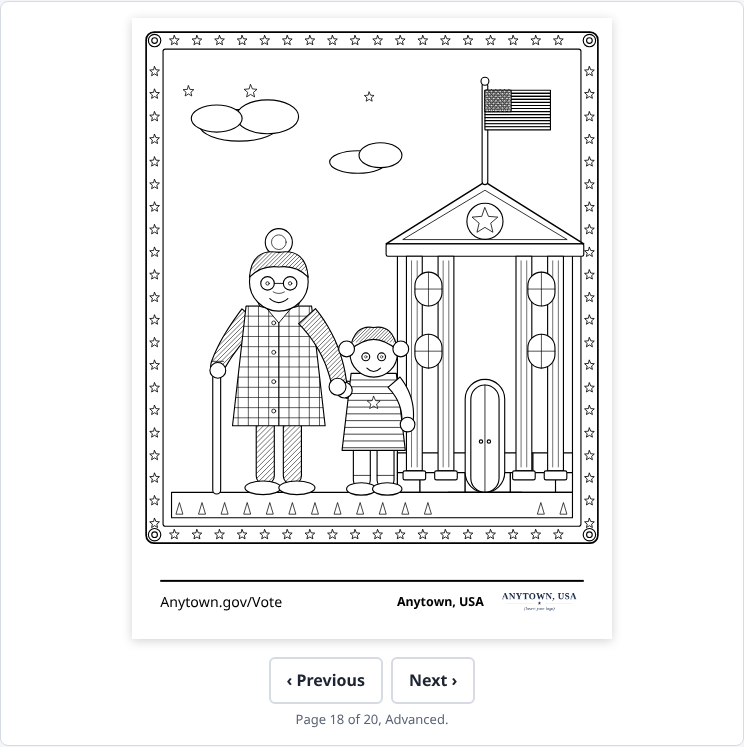
- Advanced: more detail and patterns, for older children and grown-ups.
3. Add your footer
The footer is the strip along the bottom of the page. It's the same footer as in Sign Maker: your web address on the left, your name and logo on the right, and a line above them. You can add a short message too, like "Every vote counts!".
- Under 2. Your footer, type your Jurisdiction name and Web address.
- If you like, type A short message, up to 60 letters. It's printed small and centered just under the line, above your name and address. It starts empty; leave it empty to leave it out.
- Under Logo or seal, choose your logo (a PNG or JPG picture). It takes the place of the Anytown, USA sample logo. Take the logo off leaves it out.
- Under Color of the line and words, pick a color, or type its code (like #1b2a4a). Back to black sets it back.
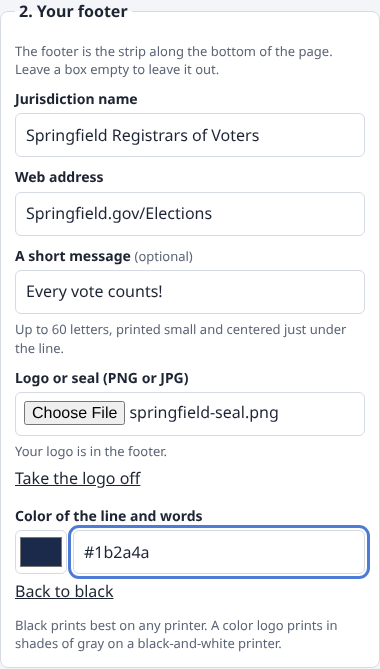
The preview changes as you type:
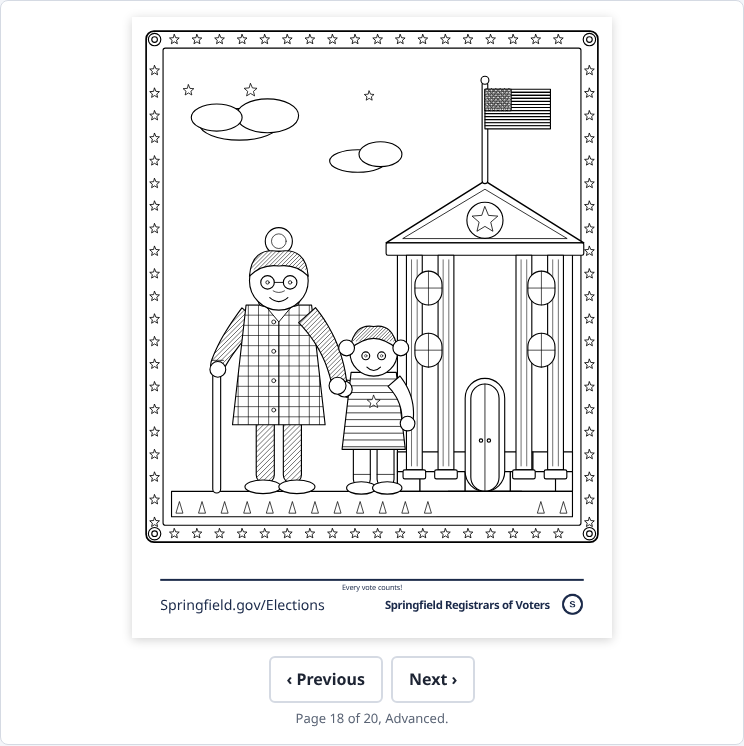
- Leave a box empty to leave that part out. With nothing at all, the bottom of the page stays blank.
- The footer always stays in the blank strip at the bottom of the page. It never covers the picture.
- A long name, web address or message gets smaller to fit. If it's still too long, it's cut short with "…" and the note under the preview says to shorten it.
- A white logo (made for a dark background) is turned dark blue, so it shows on white paper.
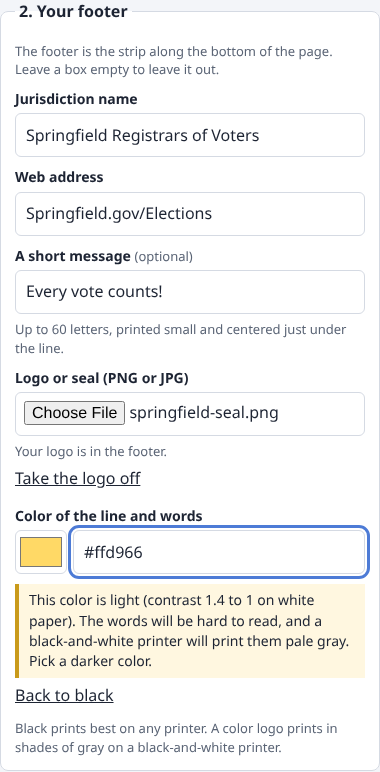
Black prints best. Most coloring pages are printed in black and white. A light color would print pale gray and be hard to read, so the page warns you and suggests a darker one. A color logo prints in shades of gray.
4. Print or download
- Under 3. Print or download, choose This page, or Every page to get all of them in the style you picked, as a coloring book.
- Press Print, PDF or PNG.
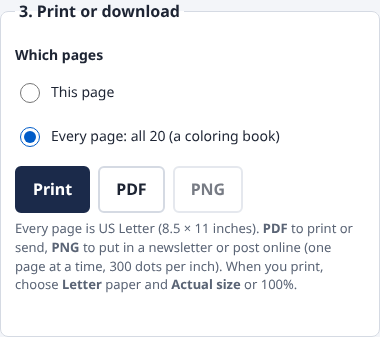
- Print opens your printer window. Choose Letter paper and Actual size (or 100%), not "Fit to page".
- PDF is ready to print or to send to a print shop. Every page is US Letter (8.5 × 11 inches). A whole coloring book takes about half a minute to make, and the page counts the pages as it goes.
- PNG is a picture of one page, for a newsletter or a website, at 300 dots per inch (print quality). For every page, use the PDF.
5. What is kept
- Your footer (name, web address, message, logo and color) is saved in this web browser on this computer only, so it's there the next time you open the tool here. It isn't sent anywhere, not even to our site. Another browser or computer starts with the Anytown, USA sample.
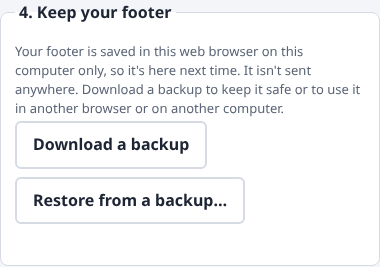
- Under 4. Keep your footer, press Download a backup to save your footer as one small file (its name starts with coloringpages-footer-backup-). Keep it somewhere safe, like your office's shared drive.
- To get it back, here or in another browser, press Restore from a backup… and choose that file. The page checks the file first. If it isn't a good backup, it says what's wrong and changes nothing.
- In a private (incognito) window, or if your browser blocks saving, the box says the footer won't be kept after you close it. Download a backup before you leave.
- The site counts visits (Google Analytics and Cloudflare Web Analytics), but those counters never see your words or logo.
6. About the pictures
- The pictures are original line art drawn for the Election Admin Suite. You may print them, copy them and hand them out for free.
- The lettering in the pictures (like "I VOTED") is drawn as shapes in the Noto Sans font, so it prints the same on every computer.
7. Getting help
- Questions, or an idea for a new page: the Contact us buttons on your Election Admin Suite Tools page reach the suite team by email.
- Your account, if you have one: the account guide.