Getting started with the First Ballot Comic Builder
First Ballot is a comic book about four teenagers voting for the first time: registering, researching their ballot, and voting by mail, early and on Election Day. The comic builder makes it match your state and your office. You answer its questions once, and it picks the right pages and puts your office's words in the balloons.
A test version. The comic builder is new and still a preview at comicbuilder.electionadminsuite.com. You set up your comic, then make it: every page lettered with your answers, ready to print as a booklet, send as a PDF or put on your website. Everything in this guide works today.
1. Open the tool and pick your state
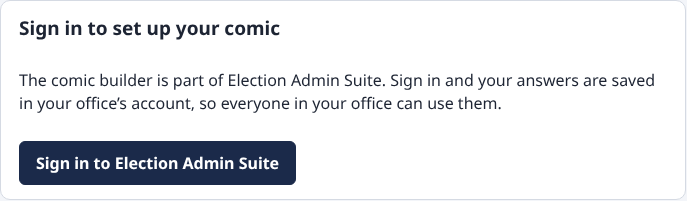
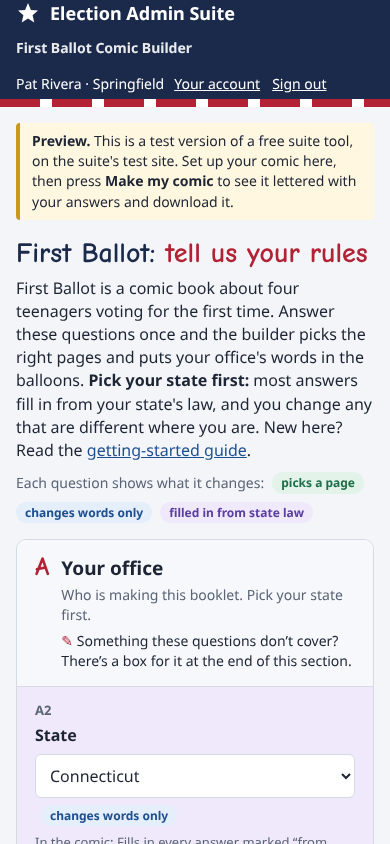
- Sign in to your Election Admin Suite account. On your office's Tools page, find First Ballot Comic Builder and press Open. The comic builder opens for that office.
- If you go straight to comicbuilder.electionadminsuite.com instead, it asks you to sign in first, then which office the comic is for (if you're in more than one).
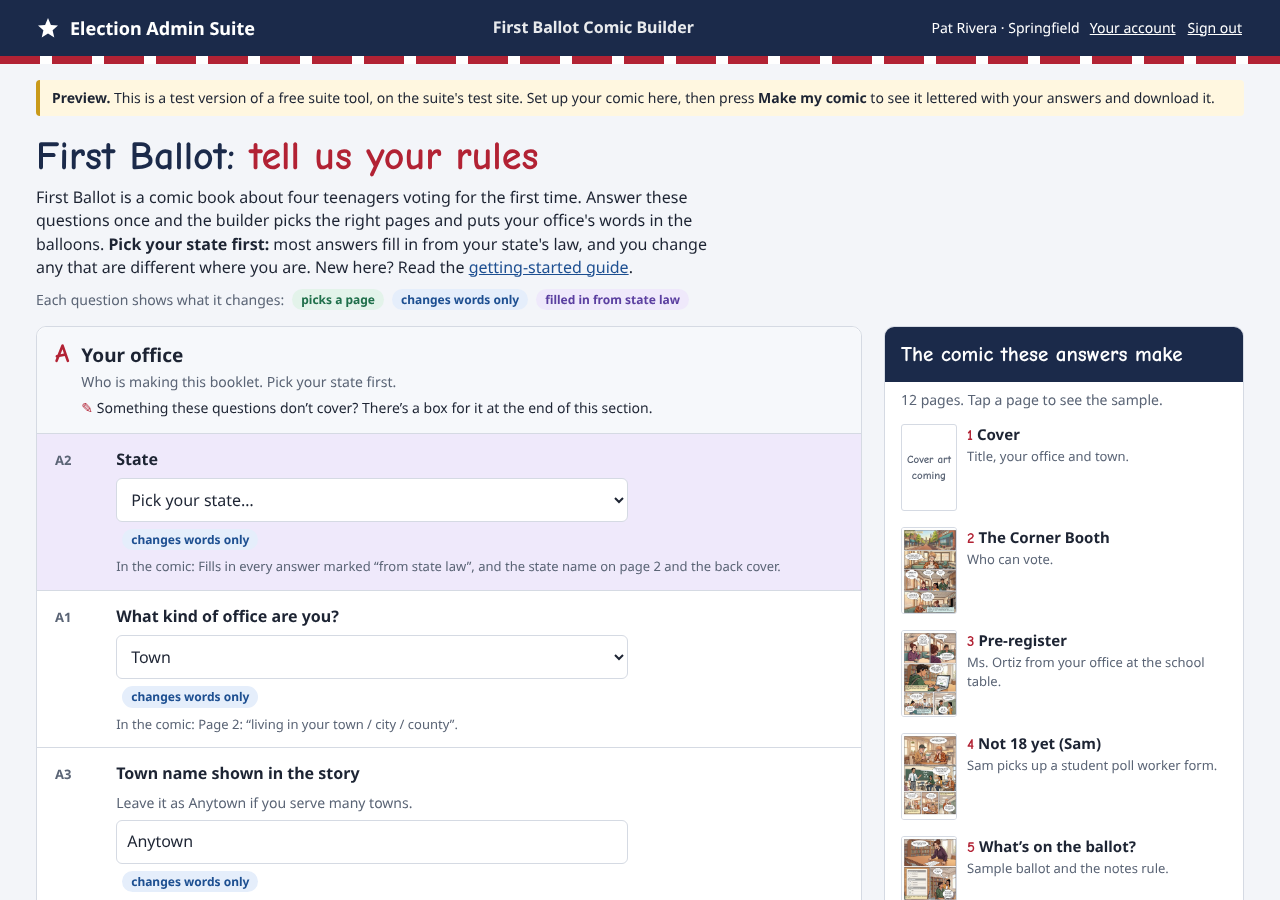
- Your name and office show at the top right, with Your account and Sign out.
- Under A. Your office, choose your State. Most answers fill in from your state's law straight away.
2. Check and change the answers
The questions are in five parts: your office, the election, young voters, ways to vote, and ID and help. Each one says what it changes in the comic. At the top of each part, a line reminds you that there's a box at the end of that part for anything the questions don't cover (see step 4).
- picks a page: this answer decides which drawn page is in the comic.
- changes words only: the pictures stay the same and the words change.
- needed: the comic can't be made without it.
An answer that came from your state's law is marked From Connecticut law, please check (with your state's name). The state answers are a starting point from national comparison tables, so please read each one.
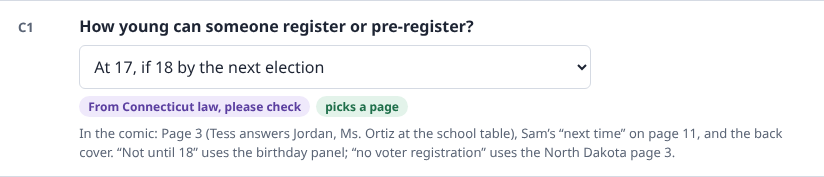
- If an answer is different where you are, change it. It's then marked You changed this.
- To go back to the state's answer, press Use Connecticut's answer (with your state's name).

- Also fill in your Office name, Phone and Website (they go on the back cover), and your Last day to register.
- Question C9 checks itself: whether Jordan (18 in July) and Priya (18 in October) can register in time under your rules. If they can't, the comic moves Priya's birthday in the words. The pictures stay the same.
- If you pick a different state later, the page asks first, because the new state's answers replace the ones you changed.
3. See the comic your answers make
The panel on the right lists the twelve pages your answers pick, and updates as you answer. A page set for your answers is shaded. Press a page to see a sample of it, larger.
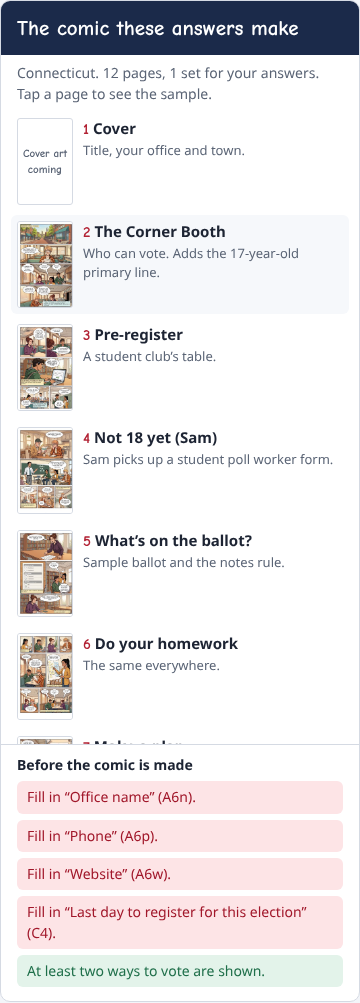
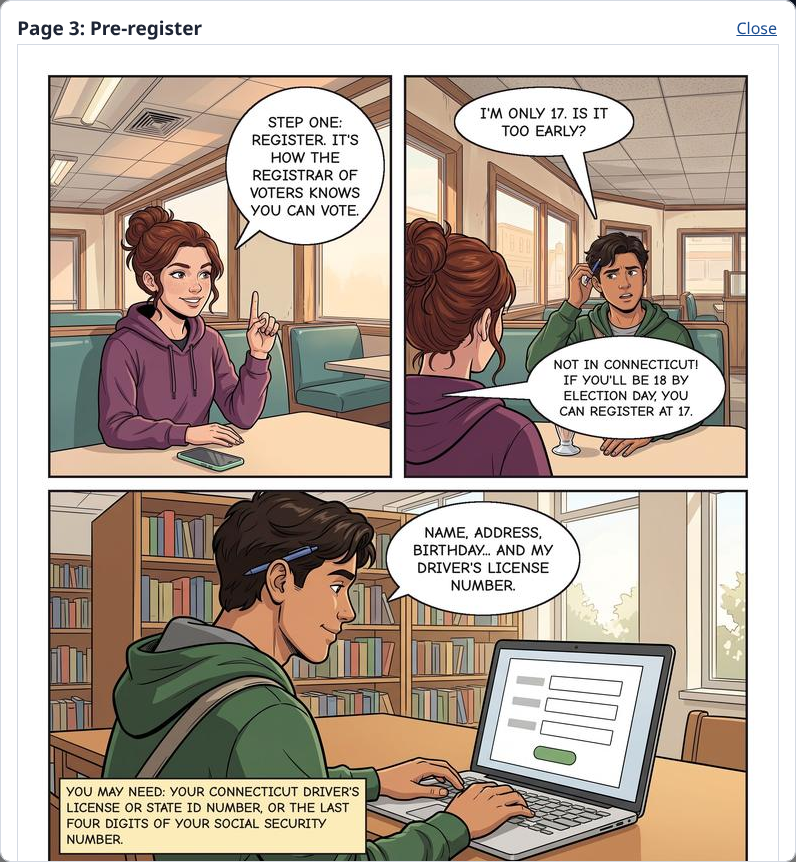
- The samples are lettered for Connecticut (the all-mail pages for Washington). Your comic uses your own answers.
- For example: in an all-mail state, Priya uses a drop box and Tess votes at a vote center. With no early voting, a "Before you go" page takes the place of Priya's early-voting page. In North Dakota, page 3 explains that there's no voter registration.
- Under the pages, Before the comic is made lists what's still needed and anything to look at.
4. Anything the questions don't cover
Each part ends with a box for Changes or anything else the questions above don't cover: a rule, a change, or something you'd like the comic to say. Write it in your own words, then press Ask AI. The AI (Claude, from Anthropic) reads it and suggests one or more of these:
- Change an answer: what you wrote is really an answer to one of the questions. The AI shows which one.
- Add words to a page: a short sentence for young voters, and the page it goes on.
- A note for us: something that needs a person, like a new drawing.
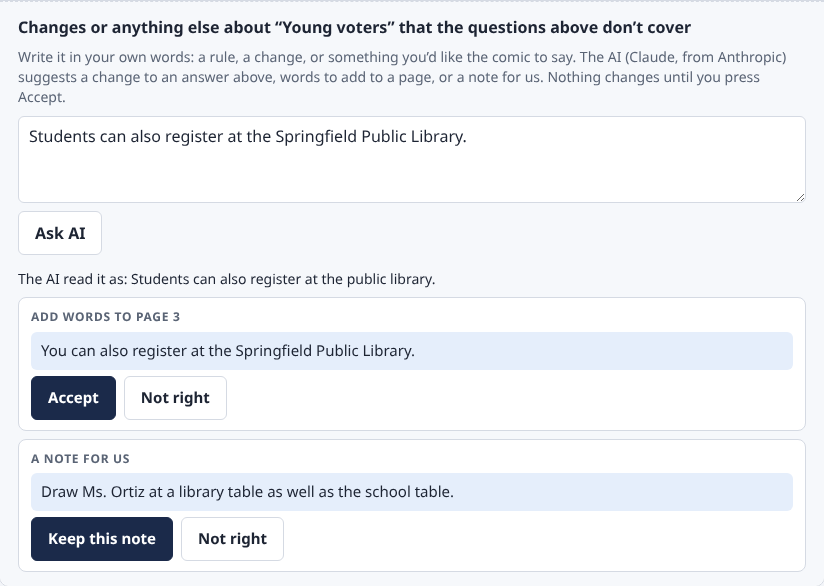
- Read each suggestion. Press Accept (or Keep this note) to use it, or Not right to leave it out. Nothing changes until you accept.
- Words and notes you accepted are listed under Words you added in the panel on the right, where Remove takes one out.
- Only what you typed in that box and that part's answers are sent to the AI. Your office's name, phone and website are not.
- On the test site, asking the AI may not be switched on yet. Then the page says so and offers to keep what you wrote as a note instead.
5. Ready to make your comic
Below the questions, Ready to make your comic? lists anything still needed. When every needed answer is filled in, tick I checked every answer marked “from state law” for my office.
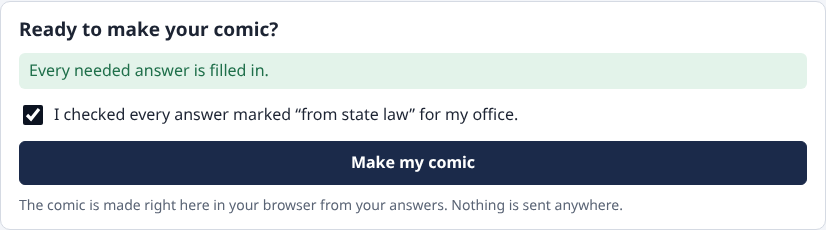
Then press Make my comic. The comic is made right here in your web browser. Your answers aren't sent anywhere to make it.
6. Your comic and the downloads
Under the questions, Your comic shows all twelve pages, lettered with your answers. Press a page to see it larger.
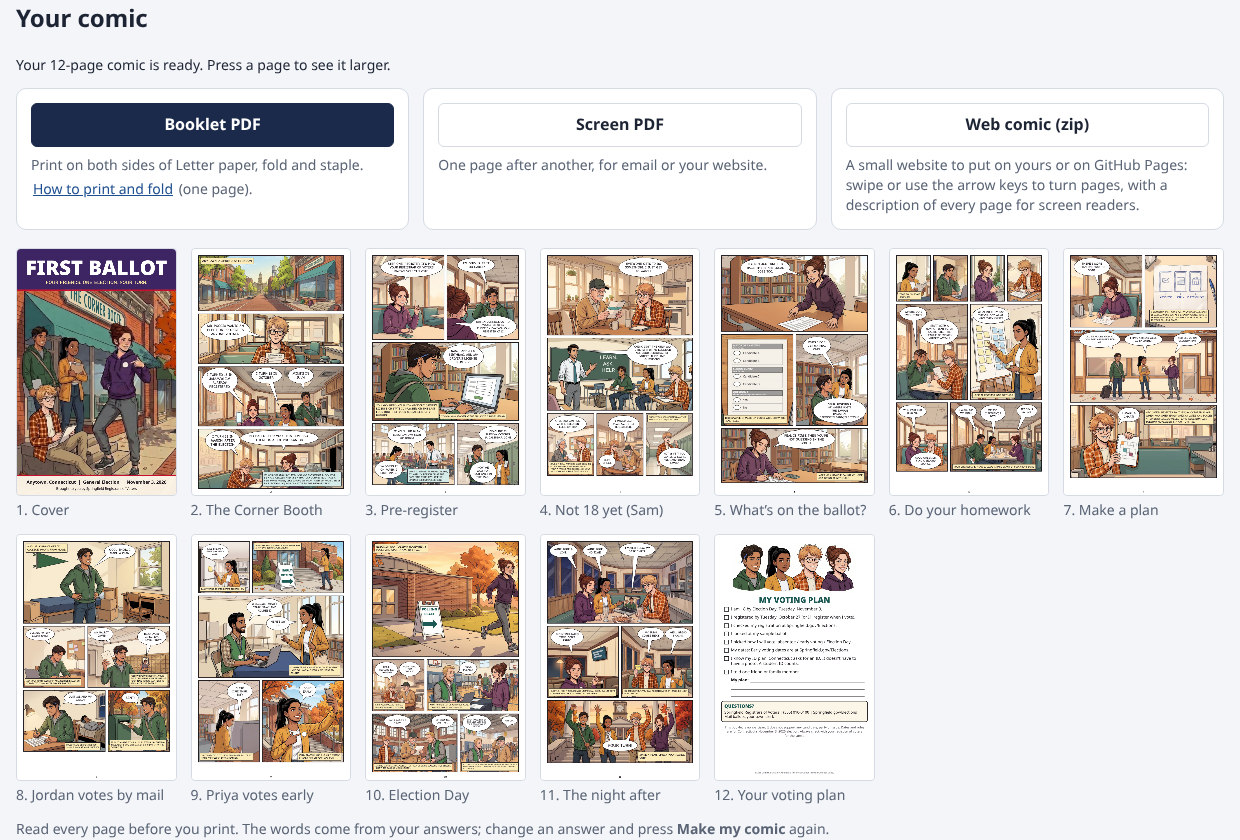
- Read every page before you print. The words come from your answers. If something is wrong, change the answer and press Make my comic again.
- The comic keeps every word balloon and caption off the characters' faces. If some words can't fit without covering a face, a box above the pages says which ones, so you can shorten them.
- Where the questions don't give a date, like the days of early voting, the comic sends readers to your website instead of guessing.
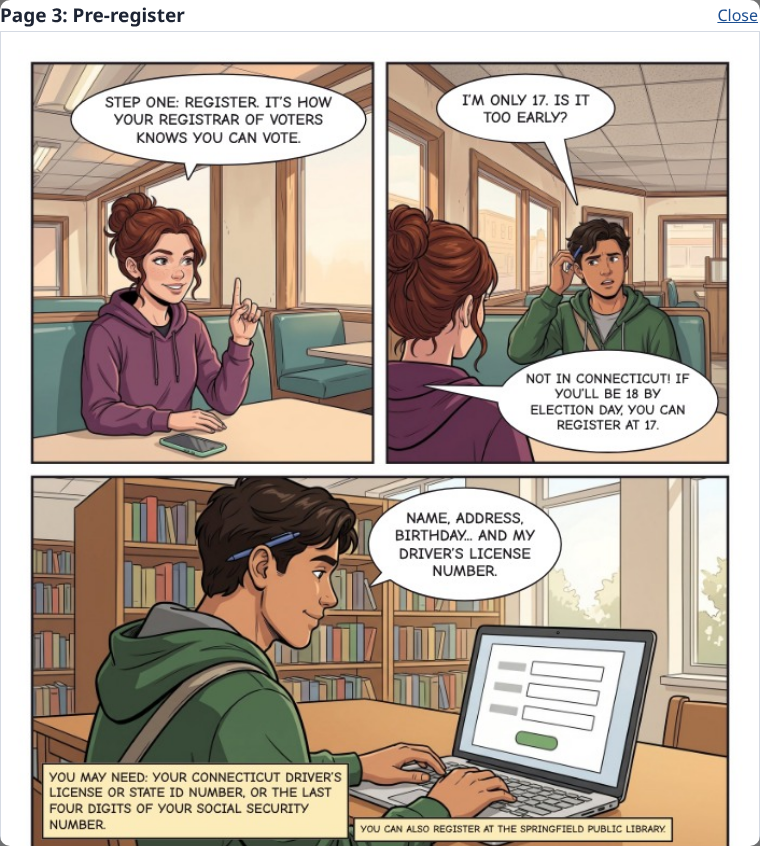
Four downloads:

- Booklet PDF: the pages already in booklet order, two to a side of Letter paper. Print it on both sides, fold the sheets in half and staple them to make a 5.5 by 8.5 inch booklet.
- How to print and fold: a one-page sheet with the printer settings (and what to do if your printer prints on one side only), how to fold and staple, and which pages go on each sheet.
- Screen PDF: one page after another, for email or your website.
- Web comic (zip): a small website. Unzip it and open index.html to read it. To put it online, copy the whole folder to your website (it works on GitHub Pages too). Readers swipe or use the arrow keys to turn pages, and every page has a description for people who use screen readers.
7. Where your answers are saved
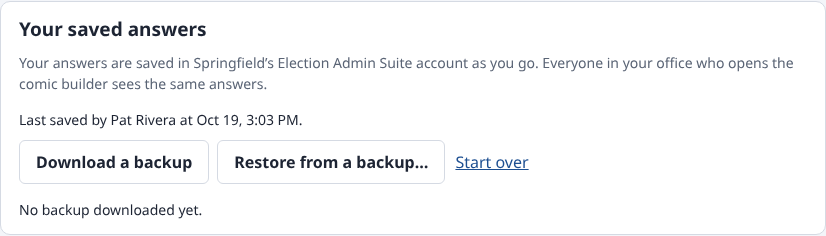
- Your answers, what you wrote in the boxes and what you accepted are saved in your office's Election Admin Suite account as you go. Under Your saved answers, the page says when they were last saved and by whom. Everyone in your office who opens the comic builder sees the same answers, on any computer.
- If someone else in your office changed the answers after you opened them, your change isn't saved over theirs. The page says who changed them and lets you choose: use their answers (the button has their name on it), or Keep mine instead.
- Owners and admins can press Download a backup to save the office's answers as one small file (its name starts with comicbuilder-backup-). Keep it somewhere safe, like your office's shared drive.
- To put them back, an owner or admin presses Restore from a backup… and chooses that file. The page checks the file first. If it isn't a good backup for your office, it says what's wrong and changes nothing.
- Start over clears every answer for your whole office. Download a backup first if you might want them.
- If you set up your comic in an earlier test version, before the comic builder had sign-in, your answers were kept in that web browser. The first time you open the comic builder there after signing in, it offers to move them into your office's account. Press Move them into your office's account.
- In the Anytown, USA demo you can try every answer and make the comic, but nothing is saved.
- The site counts visits (Google Analytics and Cloudflare Web Analytics), but those counters never see your answers.
8. Getting help
- Questions, or a rule the comic should show: the Contact us buttons on your Election Admin Suite Tools page reach the suite team by email.
- Your account, if you have one: the account guide.