Getting started with the No-Campaign Zone Map Builder
The No-Campaign Zone Map Builder makes a map of the no-campaigning zone around a polling place. You load an aerial picture, tell the page how big something in it is, and click the entrance door. You get a PDF map to scale with a circle at the no-campaigning distance (75 feet unless you change it), to hand to campaigners so they know where they can stand, and a picture to post on social media.
A test version. The No-Campaign Zone Map Builder is new and still a preview at zonemaker.electionadminsuite.com (campaignzone.electionadminsuite.com goes there too). Everything in this guide works today.
1. What picture to use
- A straight-down picture: a drone map (an orthomosaic), an orthophoto from your town's maps, or Google Maps' flat satellite view. A JPG or PNG.
- Not a tilted view. Google's 3D or angled views look down at a slant, so distances across the picture aren't the same everywhere. The map would be wrong.
- Something in the picture whose real size you know: a tennis court, a basketball court, a printed scale bar, cones you measured, or a distance you measured with the Google Maps or Google Earth ruler.
- A PDF map can't be opened yet (coming later). Save it as a picture first, and note the pixels per inch you saved it at (section 3, method 4).
2. Open the tool and load your picture
- In your web browser, go to zonemaker.electionadminsuite.com. You don't need to sign in.
- Read the yellow box Before you start: it lists the four things that make the map right.
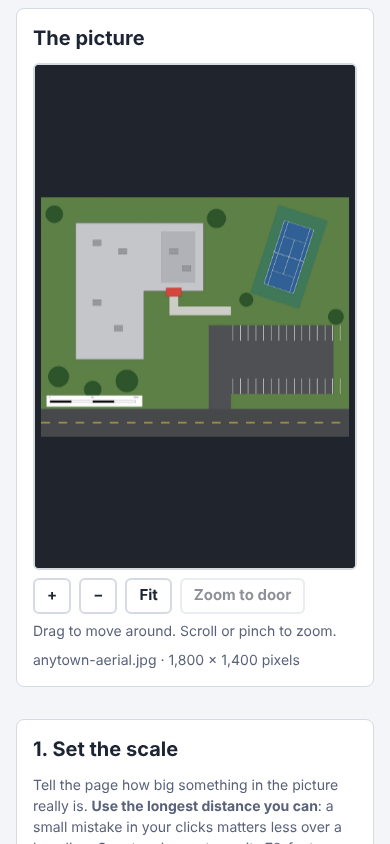
- Drop your picture on the dark box, or press Choose a picture. To try it first, press Try the Anytown sample.
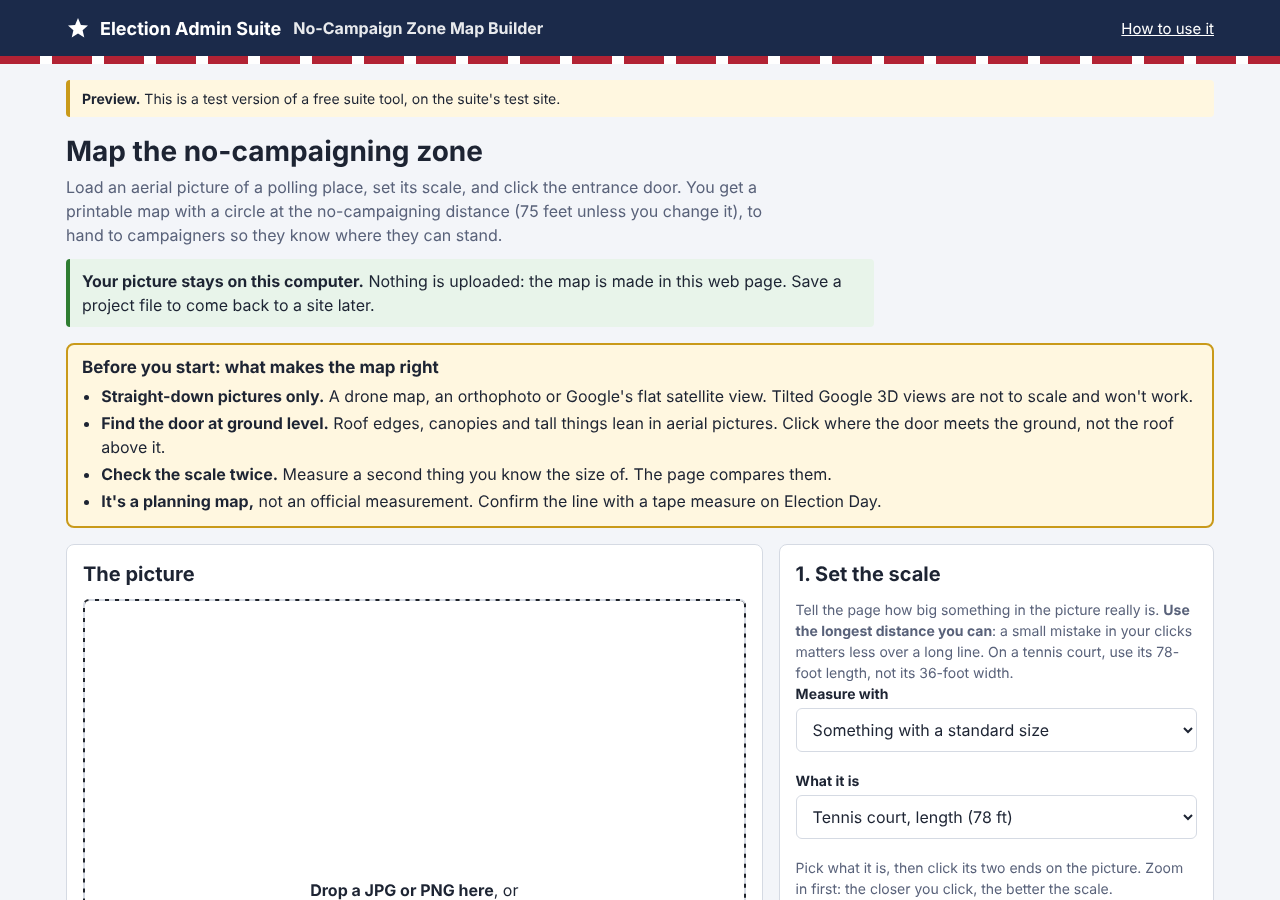
Move around the picture by dragging it. Zoom with your mouse wheel, a two-finger pinch, or the + and − buttons. Fit shows the whole picture again.
3. Set the scale
The page needs to know how many pixels in your picture make a foot. Under 1. Set the scale, choose how you'll tell it in Measure with:
- Something with a standard size. Pick it from the list: a tennis court (78 by 36 feet), a high school basketball court (84 by 50), a middle school one (74 by 42), a parking space (about 9 feet wide, but they vary, so use one only as a check) or baseball bases (90 feet apart).
- Two points I know the distance between. Cones or tape you measured on site, a building-plan dimension, or a Google Maps or Google Earth ruler measurement. You type the distance, in feet or meters.
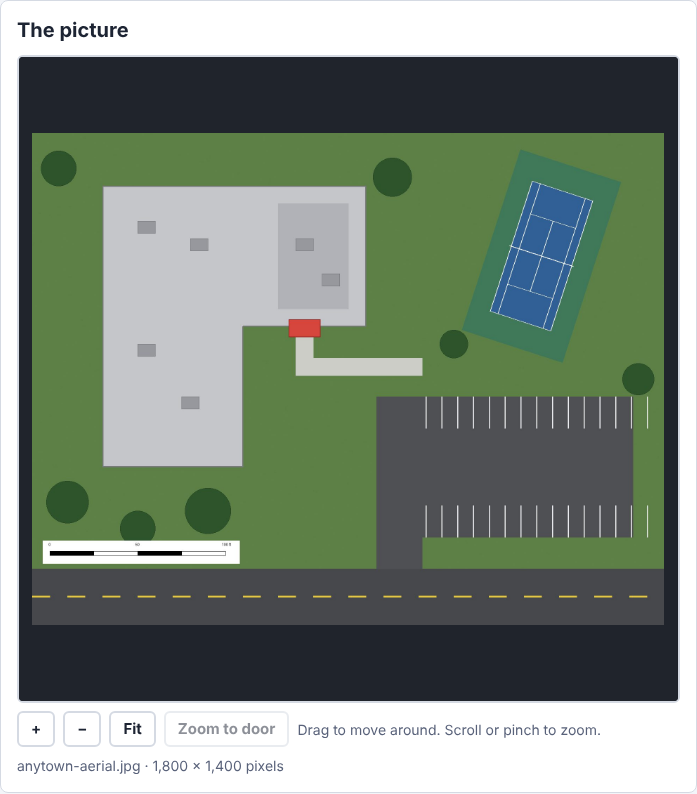
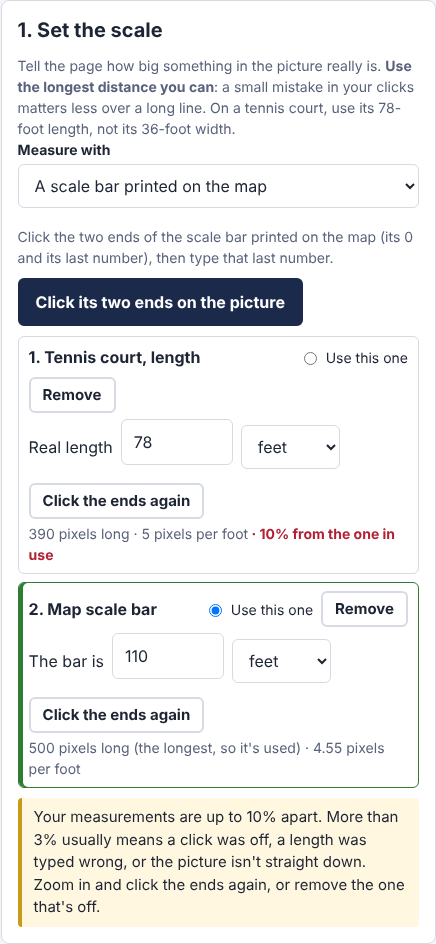
- A scale bar printed on the map. Click its 0 and its last number, then type that number.
- The map's "1 inch = N feet" scale, for a map saved as a picture at a known size. Type the scale and the pixels per inch it was saved at (often 150, 200 or 300). If the picture file says, the page fills it in. This only works if the picture wasn't resized after it was saved.
For the first three, press Click its two ends on the picture, then click one end and the other. The yellow line under the picture says which end to click next. Zoom in first: the closer your clicks, the better the scale.
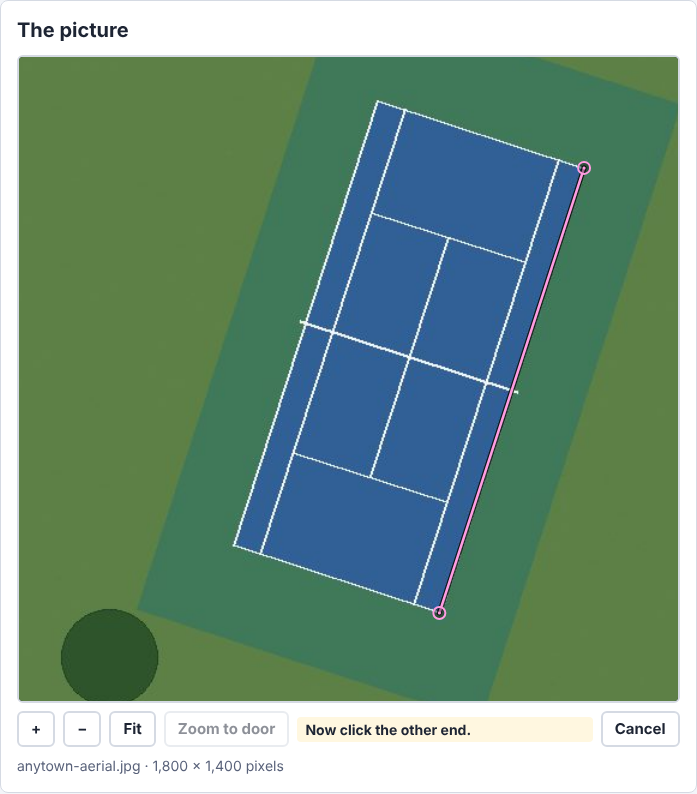
Use the longest distance you can. A click that's off by a few pixels matters less over a long line. On a tennis court, measure its 78-foot length, not its 36-foot width. Click where the lines meet the ground, not on a fence or a shadow.
4. Check the scale with a second measurement
Add a second measurement the same way. The page lists each one with its pixels per foot and how far apart they are. It uses the longest one unless you pick another with Use this one.
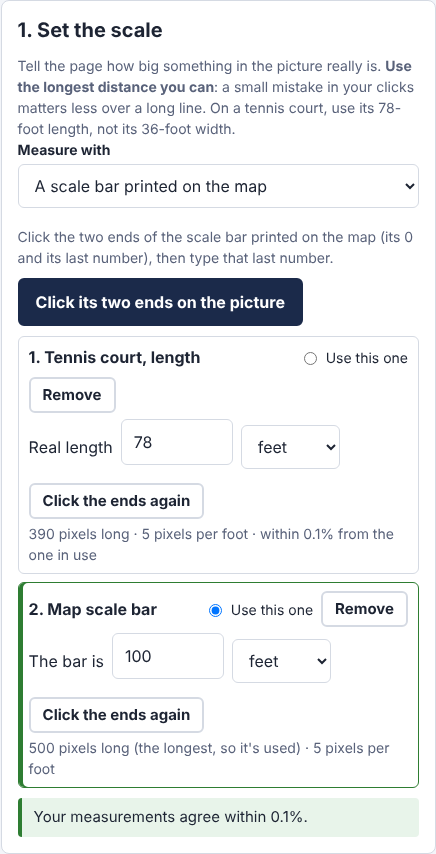
If they're more than 3% apart, a yellow warning says so. Usually a click was off, a length was typed wrong, or the picture isn't straight down. Zoom in and press Click the ends again, or Remove the one that's off. You can also drag the end of any line on the picture.
5. Click the entrance door
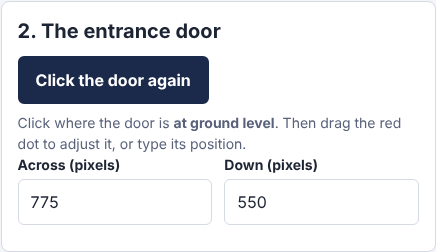
- Under 2. The entrance door, press Click the door on the picture.
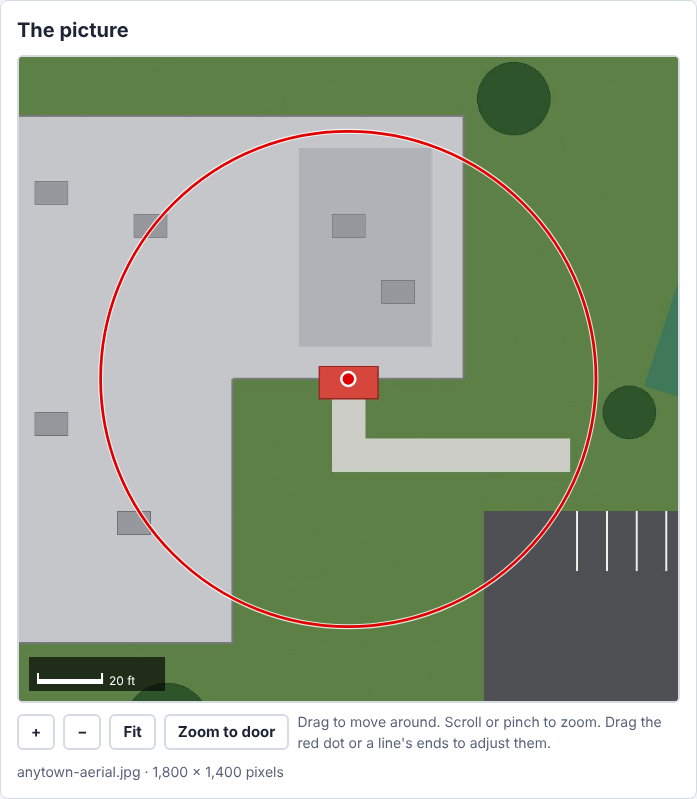
- Click the door where it meets the ground. Roofs, canopies and tall things lean in aerial pictures, so the roof edge above a door isn't where the door is. Under a canopy or portico, find the door's spot on the ground from the walkway or the wall.
- The red dot and the circle appear. Drag the dot to adjust it, or type its position in pixels. Zoom to door brings it into view.
6. The distance
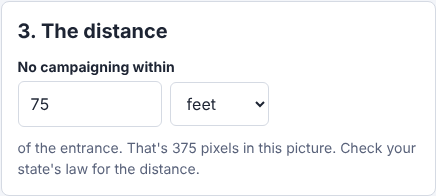
Under 3. The distance, the circle is 75 feet from the door unless you change it. Use your state's distance, in feet or meters. The page shows how many pixels that is in your picture.
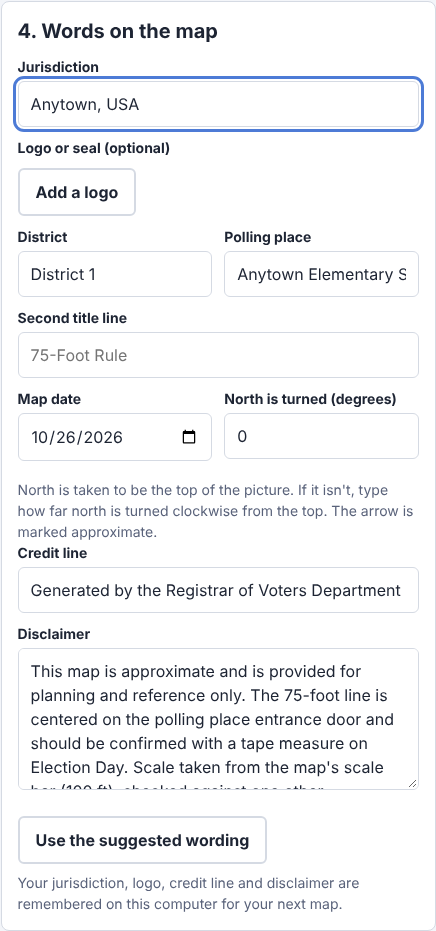
7. Words on the map
Under 4. Words on the map:
- Jurisdiction and an optional logo or seal (a PNG or JPG).
- District and Polling place: the map's title, for example "District 1, Anytown Elementary School".
- Second title line: "75-Foot Rule" unless you type something else.
- Map date: today unless you change it.
- North is turned: the map's north arrow points to the top of the picture. If north isn't the top, type how many degrees north is turned clockwise. The arrow is marked "approximate".
- Credit line: "Generated by the Registrar of Voters Department" unless you change it.
- Disclaimer: suggested wording that says the map is approximate, for planning only, and that the line should be confirmed with a tape measure on Election Day. It also says where the scale came from. Change it to suit your office. Use the suggested wording puts the suggested wording back.
Your jurisdiction, logo, credit line and disclaimer are remembered on this computer, so the next polling place starts with them.
8. Download the PDF and the social media picture
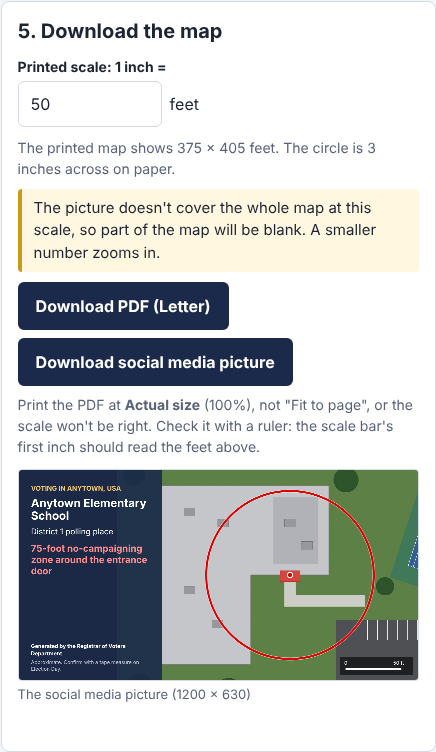
- Under 5. Download the map, choose the printed scale: 1 inch = 50 feet to start. The page says how much ground the map shows and how big the circle is on paper (at 50, a 75-foot circle is 3 inches across). If the circle won't fit, it says which number to use. A smaller number zooms in.
- Press Download PDF (Letter). It's a Letter page, upright, centered on the door.
- Print it at Actual size (100%), not "Fit to page", or the scale won't be right. Check it with a ruler: the scale bar's first inch should read the number of feet you chose.
- Press Download social media picture for a 1200 × 630 picture with the place's name and the zone, to post with the PDF.
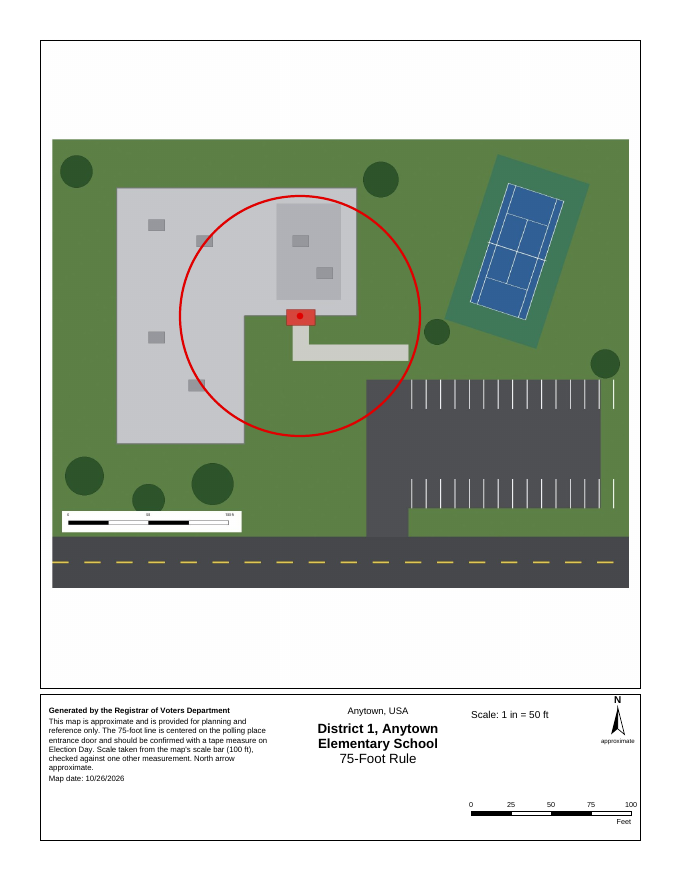
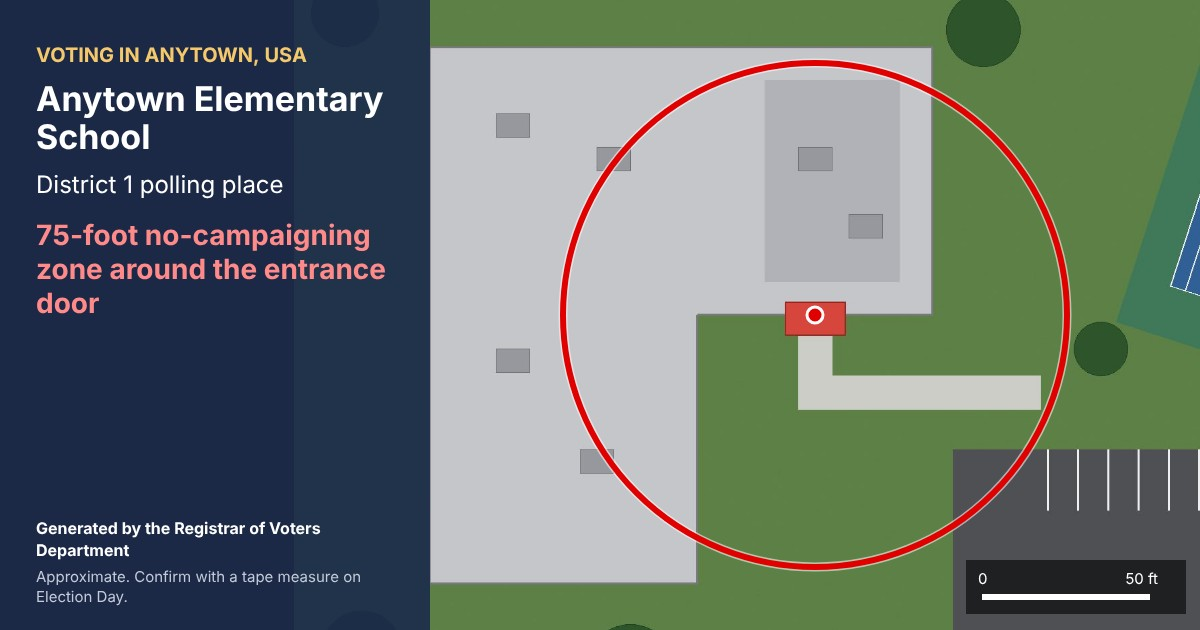
How exact is it? The PDF is drawn so that 1 inch is exactly the number of feet you chose. How close that is to the ground depends on the picture being straight down and on your scale clicks, which is why the page compares two measurements. It's a planning map, not an official measurement: confirm the line with a tape measure on Election Day.
9. Save the polling place to come back to
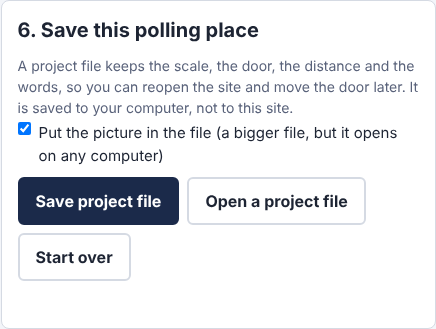
- Under 6. Save this polling place, press Save project file. It saves a file to your computer (not to this site) with the scale, the door, the distance and the words.
- With Put the picture in the file ticked, the file holds the picture too, so it opens on any computer. Untick it for a smaller file, and keep the picture with it.
- To come back to a site, press Open a project file. If the picture isn't in the file, the page asks you for it, and checks it's the same picture. Then move the door or change anything, and download again.
- Save one project file per polling place. Start over clears the page for the next one.
10. Your picture stays on your computer
- The map is made inside the web page. Your picture is never uploaded to our servers or anyone else.
- The page keeps only your jurisdiction, logo, credit line and disclaimer in your browser, for your next map. Your work on a polling place is kept in the project file you save.
- The site counts visits (Google Analytics and Cloudflare Web Analytics), but those counters never see your pictures or maps.
11. Coming later
- Open a PDF map directly (its first page).
- Read a drone picture's height and camera details to check the scale.
- Find the door from a red dot marked in a second copy of the same picture.
- Download maps for every polling place at once.
12. Getting help
- Questions: the Contact us buttons on your Election Admin Suite Tools page reach the suite team by email.
- Your account, if you have one: the account guide.